E's Network Tech in Naira

Discover the Samsung Galaxy S26 Ultra

Explore the latest phones, detailed specifications, customization ideas, practical tech tips, and everything you need to make smarter technology choices.

View Galaxy S26 Ultra

Phone checker

Find your next phone

Search by brand or model, or enter your maximum budget in naira.

Performance Lab

Test your phone's performance.

Want to know how powerful your phone really is? Run a real graphics and GPU benchmark to test gaming performance, graphics power and overall device performance.

View AnTuTu Benchmark ↗
GPU
AnTuTu Benchmark Real device performance testing

Phone guides

Practical guides

Read every step first and back up your data before making changes.

Factory reset a locked Samsung phone

A factory reset erases the phone's data. Button combinations vary by model; connect the phone to a computer with a USB cable if Recovery Mode does not appear.

  • Hold Volume Down and the Side/Power button until the screen goes black.
  • As soon as it goes black, switch to holding Volume Up and the Side/Power button until Android Recovery appears.
  • Use the volume buttons to highlight Wipe data/factory reset, then press the Side/Power button.
  • Highlight Factory data reset and confirm. When finished, select Reboot system now.

Important: After resetting, Android may require the Google account previously synced to the phone. Make sure you're authorized to reset the device, and check Samsung support for model-specific instructions.


Identify your exact model

Check Settings, the device label, and the model number, not just the marketing name.

Prepare carefully

Back up your files, charge your phone, and read the full instructions before making changes.

Use trusted instructions

Use official manufacturer support where available. An incorrect file can erase data or make a phone unusable.

Flashing can erase data, affect your warranty, or damage your device. Do not use firmware made for a different model. E's network does not recommend bypassing security or installing files from unknown sources.

Make it yours

Phone customization

Explore personalization tips for different phone systems.

iOS

Customize your Lock Screen, Home Screen, wallpapers, widgets, and Focus modes.

iOS Lock Screen and wallpaper ideas

  • Choose a wallpaper with a clear area or frame around the clock, then customize the clock’s color and style in the Lock Screen editor.
  • Try a bright wallpaper and a glass-style clock effect if your iPhone and iOS version offer that option.
  • Use coordinating Lock Screen and Home Screen wallpapers for a consistent look. Check wallpaper apps and downloads before installing or purchasing.
  • Try a depth-effect wallpaper if supported. A simple clock style can help keep the Lock Screen easy to read.

To edit, touch and hold the Lock Screen, then tap Customize. Available effects and controls depend on your iPhone model, wallpaper, and iOS version.

One UI

Try Galaxy themes, Home Screen widgets, Edge panels, and Modes and Routines. Good Lock modules may vary by region.

Try an iOS-style glass clock

  • Install KWGT and, where available, Fine Lock and the LockStar module from trusted sources.
  • Extract the clock widget files from a source you trust. In KWGT, create the requested folder if prompted.
  • Add a KWGT widget to your Home Screen, import the clock design, adjust its size, and save it.
  • Open LockStar through Fine Lock, then customize your Lock Screen. If supported, remove or move the built-in clock and add a KWGT widget.
  • Choose the imported clock design, adjust its size and position, then use LockStar to align and save it.

Fine Lock, LockStar, and Lock Screen widget support vary by device, One UI version, and region. Avoid unknown downloads, and keep a backup.

HyperOS

Personalize wallpapers, icons, widgets, Always-on display, and the Control Center using built-in settings.

Customize your Home Screen with KWGT

  • Clear or rearrange home-screen icons and widgets, then adjust the stock launcher settings to make space.
  • Add KWGT widgets from the home-screen widget menu. Resize and position them to fit your layout.
  • Customize widget text, colors, images, and other elements in the KWGT editor.
  • Where supported, set touch actions to open apps or settings. You can also use image layers and installed icon packs.
  • Save finished designs as KWGT presets so you can reuse them later.

Download KWGT and widget packs from trusted sources. Launcher features and gesture support vary by device and HyperOS version; use stock launcher settings rather than bypassing system restrictions.

HiOS

Personalize your TECNO phone using its built-in themes, wallpapers, and home-screen settings.

Customize your Home Screen with KWGT

  • Install KWGT from Google Play.
  • Add a KWGT widget from the Home Screen widget menu, then resize and position it.
  • Tap the widget to open KWGT. Customize its text, colors, images, and layout, then save.
  • Use widget packs only from sources you trust, and check their compatibility before installing.
  • Customize the lock screen using the options available in your HiOS settings or themes app. KWGT lock-screen widgets and Samsung LockStar are not generally supported on HiOS.

Available options vary by TECNO model and HiOS version. Back up your layout before making major changes.

XOS

Adjust launcher layouts, themes, widgets, and privacy controls. Features depend on your Infinix model.

GrapheneOS

Review privacy settings, user profiles, app permissions, and per-app network access in Settings.

Phone and gadget news

Latest headlines roundup

A roundup based on the headlines provided. Visit GSMArena for original articles and updates. Reported details may change.

Reviews and hands-on

  • Reviews of the iPhone 18 Pro and iPhone 18 Pro Max
  • vivo X500 series hands-on coverage and unboxing
  • Xiaomi UltraThin Magnetic Power Bank review
  • vivo V80 camera samples and hands-on
  • Realme 16 Pro Harry Potter Edition unboxing

New device announcements

  • Honor Magic9 series announcements, pricing, and camera details
  • Oppo F35 series launch news
  • vivo Y600i and Mivi One announcements
  • Honor X9e Pro announcement
  • Xiaomi 18 Pro series global release news
  • Xiaomi Pad 9 series announcements
  • Infinix GT NX Controller and GT NX Station announcement

Upcoming phones and gadgets

  • OnePlus 16 launch and camera reports
  • vivo X Fold6 launch reports
  • Oppo K14 Plus design and memory details
  • iQOO 16 and Pad Ultra updates
  • Reports about upcoming Redmi, HMD, vivo, and Samsung devices
  • News about Meta smart glasses and AI devices

Software and industry

  • WhatsApp Android redesign in development
  • Samsung One UI and Motorola Android update reports
  • Pixel lock-screen issue reports
  • GrapheneOS support news
  • Qualcomm chip and technology announcements
  • Apple, Samsung, and other company news

Deals and reader polls

  • Reported discounts on Pixel, Galaxy, and Xiaomi devices
  • Reader polls about Xiaomi and Redmi phones
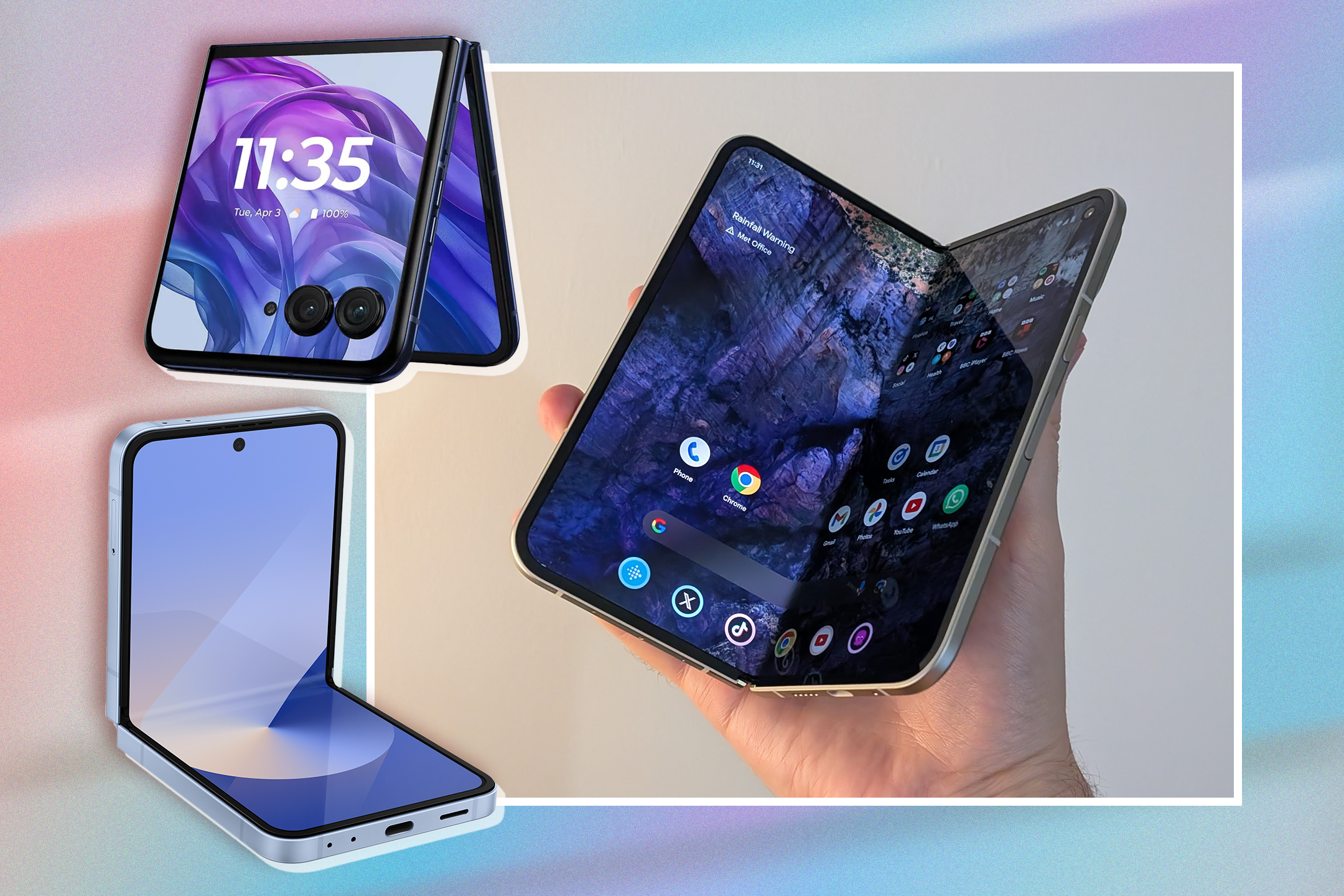
  • Comparisons of Galaxy foldables and alternatives

Xiaomi launch and pricing

Xiaomi 18 Pro Max: price and availability

Reported launch information based on the linked coverage. Prices and international availability can change.

China launch price

From CNY 6,999 for the base configuration, approximately US$1,045. The USD amount is an estimate; exchange rates vary.

The final price depends on the memory and storage configuration.

International availability

The phone launched in China on September 23, 2026. A global rollout has been reported, but international prices, dates, and participating regions may differ.

Launch video

Sources: Android Authority · GSMArena

Phone comparison

iPhone 17 Pro Max vs Galaxy S26 Ultra vs Pixel 10 Pro

Compare the listed features, then confirm specifications, availability, and pricing with each manufacturer before buying.

FeatureApple iPhone 17 Pro MaxSamsung Galaxy S26 UltraGoogle Pixel 10 Pro
Best forOverall performance, video capture, and the Apple ecosystemDisplay technology, stylus productivity, and camera versatilityOn-device AI features, photo processing, and clean Android
Display6.7-inch Super Retina XDR OLED, 120Hz6.8-inch Dynamic AMOLED 2X, 120Hz, anti-reflective6.7-inch LTPO OLED, 120Hz
ProcessorApple A19 ProSnapdragon 8 Gen 5 for GalaxyGoogle Tensor G5
Main cameras48MP main, 48MP ultra-wide, 48MP telephoto200MP main, 50MP ultra-wide, 50MP 5x telephoto, 10MP 3x telephoto50MP main, 48MP ultra-wide, 48MP 5x telephoto
Standout featureSpatial video recording and customizable Action ButtonIntegrated S Pen, Galaxy AI suite, anti-reflective displayAI photo editing, Google AI features, long-term software support
BatteryExcellent all-day endurance5,000mAh with high-speed charging5,000mAh or more with efficient power management

Which one should you choose?

Samsung Galaxy S26 Ultra

Consider it for an integrated stylus, versatile cameras, and a bright display designed for outdoor visibility.

Apple iPhone 17 Pro Max

Consider it for video recording, performance, mobile gaming, and integration with Mac or iPad.

Google Pixel 10 Pro

Consider it for Google AI features, a clean Android experience, and computational photography.

Build your skills

Ways to earn through tech

These paths take time to learn and build. Start with useful skills, small projects, and honest claims about your experience.

AI services

Learn to use AI tools responsibly to support research, writing, design, or business workflows.

Learn more →

Affiliate marketing

Recommend products honestly, disclose affiliate links, and create helpful content for a clear audience.

Learn more →

Web development

Build websites and web apps, create a portfolio, and offer services to clients or local businesses.

Learn more →

Other tech paths

Explore graphic design, video editing, IT support, cybersecurity fundamentals, and tech education.

Learn more →

Separate from the phone checker

Where to look for phones

These are retailer homepages, not endorsements. Compare prices, seller ratings, return policies, warranty coverage, and device condition before buying.

Jumia Nigeria

Browse phone listings and check the seller, delivery, and return details.

Visit Jumia

Konga

Compare available devices and review seller, payment, and return information.

Visit Konga

Samsung

Check Samsung's official site for product details and authorized buying options.

Visit Samsung

Apple

View Apple product information and check purchase options in your region.

Visit Apple

Community poll

Which phone would you choose?

Select one phone

About E's network

Knowledge connects us.

E's network is a space for people who want to make sense of technology. We share useful information, encourage curiosity, and help build a more informed tech community.

01

Understand technology

Clear explanations, phone guides, specifications, and practical technology information.

02

Stay curious

Discover new phones, emerging technology, useful tools, and ideas shaping the digital world.

03

Grow with technology

Learn practical digital skills and explore opportunities to build, create, and earn with technology.

Technology professional working with a laptop
Technology connects us Learn · Explore · Create

Important information

Disclaimer

E's network provides technology information, guides, news, comparisons, and educational content for general informational purposes.

We do not guarantee that every specification, price, feature, link, or availability statement will remain current.

External links may lead to websites operated by third parties. E's network is not responsible for the content, policies, products, or services provided by those websites.

Product links and retailer information should not be interpreted as endorsements. Always verify important information before making a purchase or changing your device.

Join the community

Follow my WhatsApp Channel

Get phone updates, tech news, and new guides directly on WhatsApp.

Follow the channel